 Speak Teleprompter
How to use a teleprompter on your phone
Put your script in a teleprompter app, set the text size so you can read it at arm’s length, and start recording while you look at the camera. The text scrolls for you, so you keep eye contact without memorising the script.
Using Speak Teleprompter, step by step
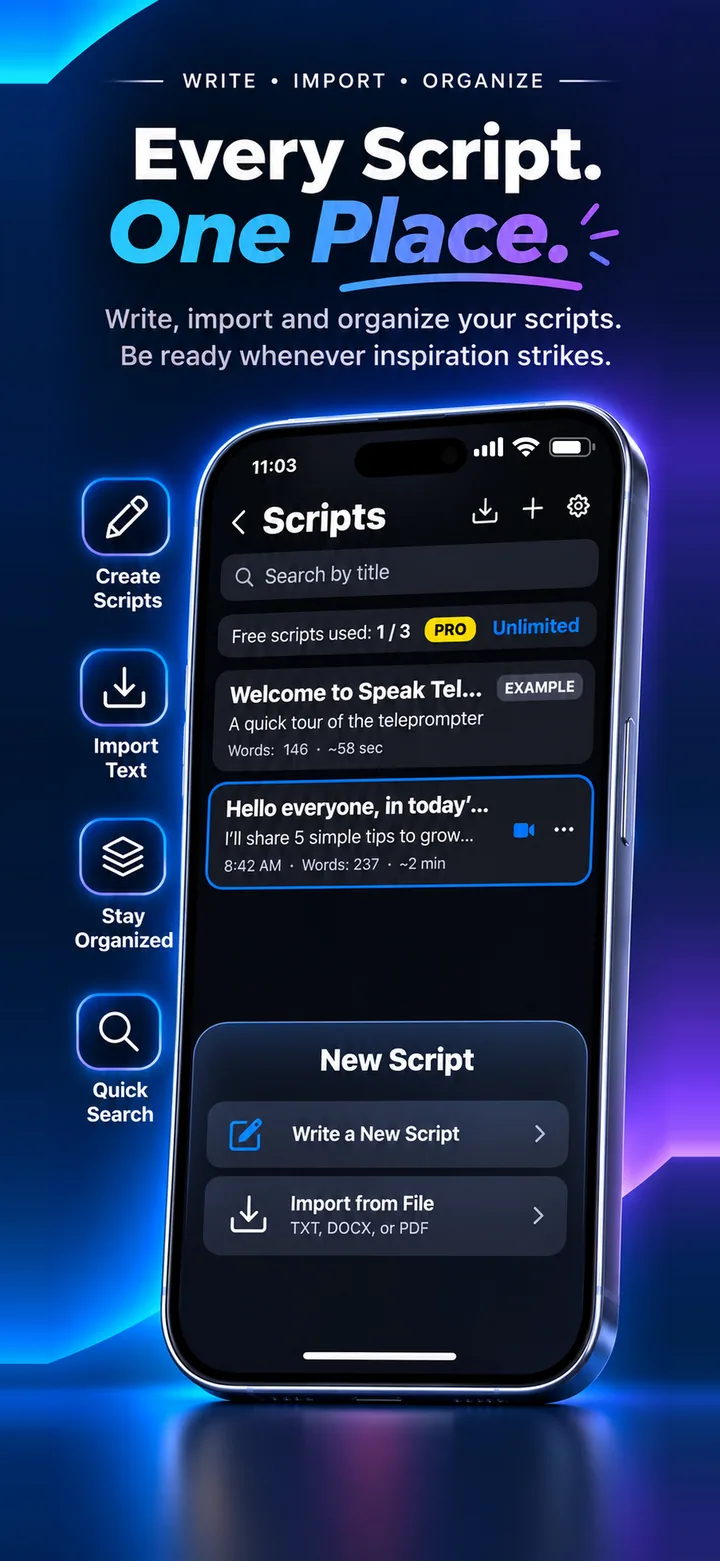
- Tap + on the Scripts screen, then choose Write a New Script, or Import from File (TXT, DOCX or PDF).
- Open the script. Choose Voice (follows you) or Auto (steady scroll).
- Use A- and A+ to set the text size so it is easy to read.
- Hold your phone at eye level and look at the top of the screen, near the camera.
- Tap the red button, read naturally and tap again to stop. Your video saves to Photos.
Set it up before you record
Put the phone at eye level, use soft light in front of you and keep the text a little larger than you think you need. Read the script once out loud first.
Keep your eyes near the lens
The closer the text sits to the camera, the less your eyes move sideways. A short line at a time is easier to read than a full paragraph.
Use the mirror option only if you need it
Mirror mode flips the text, which is useful with a reflective teleprompter glass. For a normal phone recording leave it as you prefer.
Frequently asked questions
Do I need extra equipment?
No. A phone and a place to prop it are enough. A tripod helps keep the camera steady.
Does it record with the front camera?
Yes, you read your script and record on the front camera so you can look at the lens.
Where do my videos go?
Videos save to your Photos library. Scripts and recordings stay on your device.
Try it on your iPhone
Speak Teleprompter scrolls your script as you speak and records on the front camera. Free to try.
Download on the App Store