 Speak Teleprompter
Voice-follow vs auto-scroll: which teleprompter mode should you use?
Auto-scroll moves the script at a fixed speed you set, while voice-follow moves it only as fast as you speak. Use voice-follow for natural talking-to-camera videos and auto-scroll when you want a steady, hands-off read.
How to switch modes in Speak Teleprompter
- Open your script in the teleprompter screen.
- Tap Voice for voice-follow or Auto for a steady scroll at the top of the screen.
- In Auto, drag the Slow to Fast slider until the speed feels comfortable.
- Tap the red record button when you are ready.
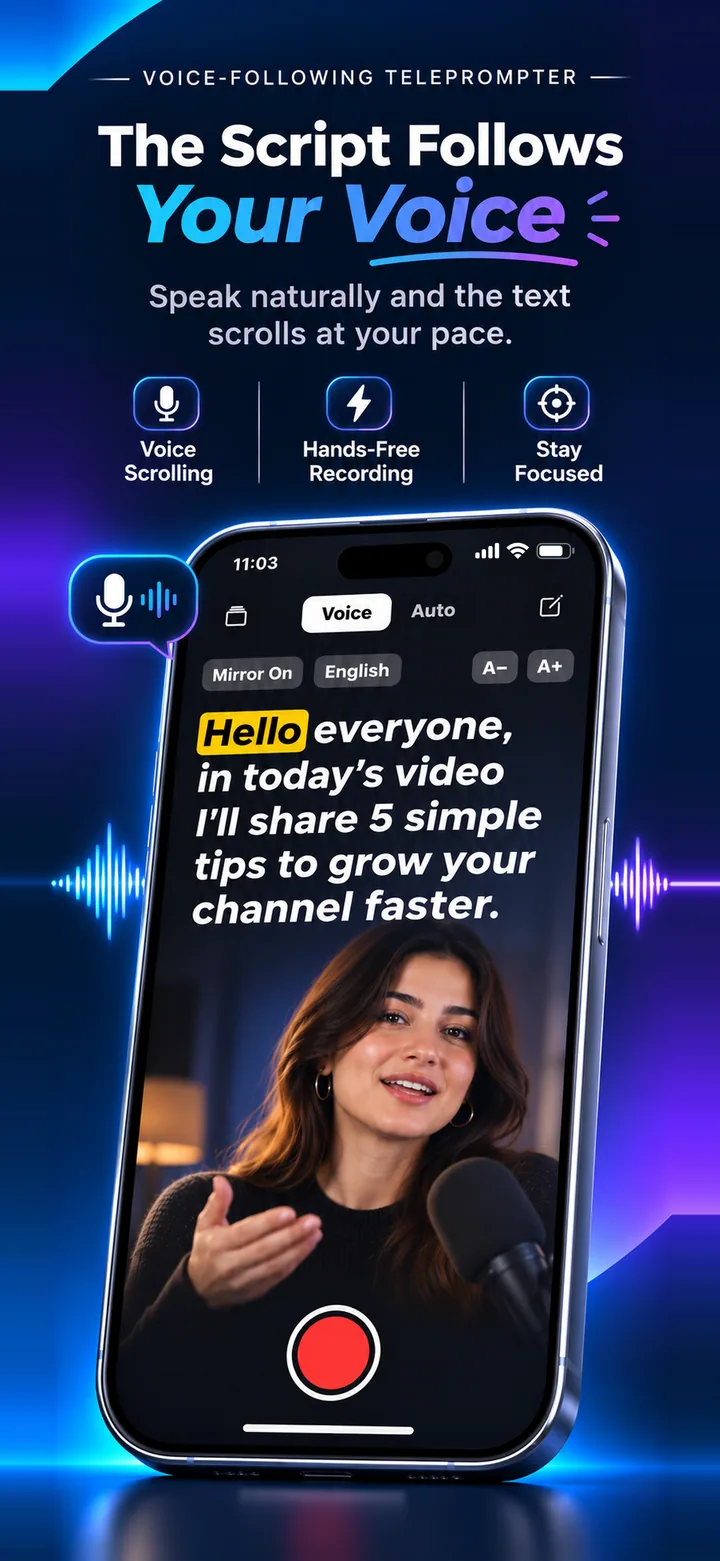
Auto-scroll: predictable, but you follow the text
The text moves at the speed you chose, and you keep up with it. It is simple and works in any language, but a long pause or a stumble means the script runs on without you.
Voice-follow: the text follows you
The script advances as you say the words, so pauses, laughs and re-takes do not push you out of place. It suits creators who like to sound natural and spoken, not read.
Which should you pick?
Try a 30-second script in both. If you often stop to breathe or re-phrase, voice-follow will feel better. If you read in one smooth stretch, auto-scroll is perfectly fine.
Frequently asked questions
Can I switch modes in the middle of a script?
Yes. The switch at the top of the screen changes mode, and your script stays where it is.
Does auto-scroll need the microphone?
Auto-scroll does not depend on your voice. Voice-follow listens to your microphone to follow your words.
Which mode is better for long scripts?
It depends on how you read. Voice-follow tolerates pauses; auto-scroll is steadier for an uninterrupted read.
Try it on your iPhone
Speak Teleprompter scrolls your script as you speak and records on the front camera. Free to try.
Download on the App Store